

Creating & Managing Meetings
Creating & Managing Meetings in Moodle
Section titled “Creating & Managing Meetings in Moodle”Once SoftSysVideo is connected to Moodle, teachers create and manage meetings using the standard BigBlueButton activity. This page explains what teachers and students experience.
Creating a meeting (teacher view)
Section titled “Creating a meeting (teacher view)”-
In a Moodle course, turn on editing mode
-
Click Add an activity or resource
-
Select BigBlueButton
-
Configure the meeting:
- Name — displayed to students
- Description — shown on the activity page
- Recording — enable if you want the session recorded
- Wait for moderator — students can’t enter until a teacher joins first
- Opening and closing time — restrict when the room is accessible
-
Save the activity
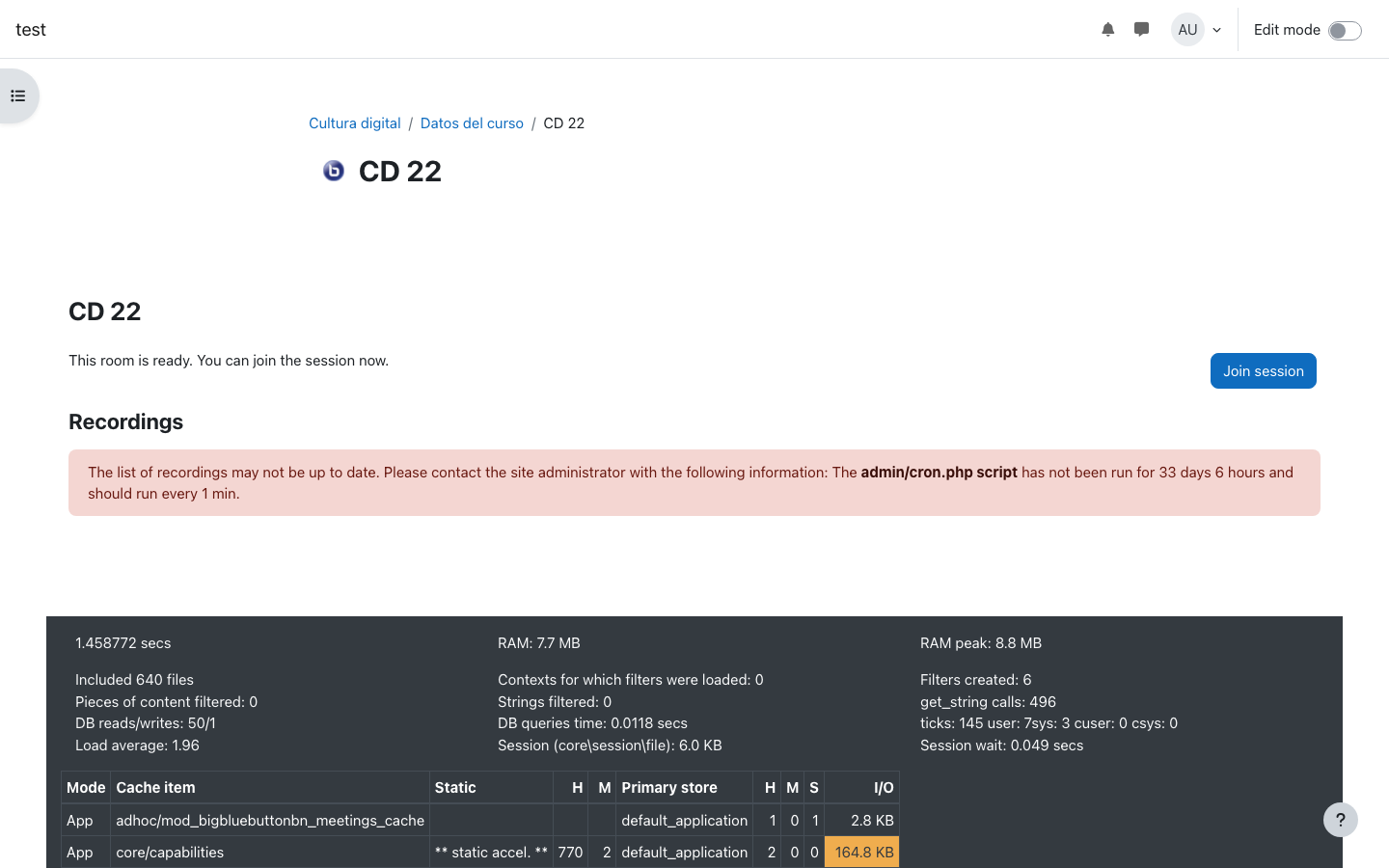
Starting a meeting (moderator)
Section titled “Starting a meeting (moderator)”When the teacher clicks Join session, they enter the SoftSysVideo room as a moderator. Moderators can:
- Start the meeting before students enter
- Mute or remove participants
- End the meeting for everyone
- Control recordings (start/stop)
Joining a meeting (student)
Section titled “Joining a meeting (student)”Students click Join session in the Moodle activity. They are taken directly to the SoftSysVideo meeting room.
If Wait for moderator is enabled, students see a waiting screen until the teacher joins.
Meeting status
Section titled “Meeting status”On the Moodle activity page, students can see the current status:
- Not started — no one is in the room yet
- In progress — the meeting is active
- Finished — the meeting has ended
Ending a meeting
Section titled “Ending a meeting”Meetings end automatically when all participants leave, or a moderator clicks End meeting in the room controls.
After the meeting ends:
- The activity shows Finished status
- If recording was enabled, the recording is processed and appears in the Recordings tab of the activity (typically within a few minutes)