
Controls & Features
Controls & Features
Section titled “Controls & Features”The SoftSysVideo meeting room toolbar gives participants control over their audio, video, and interaction options.
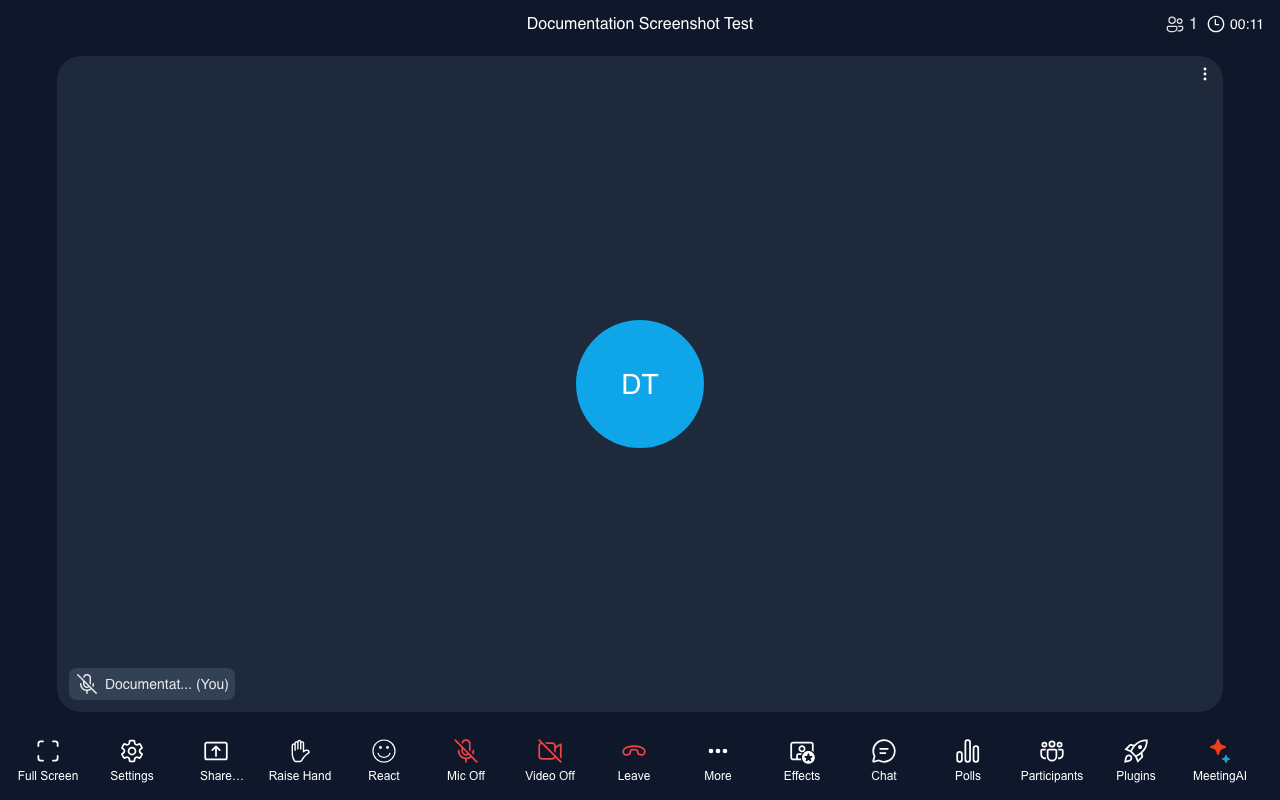
Toolbar overview
Section titled “Toolbar overview”The main toolbar sits at the bottom of the screen:
| Button | Action |
|---|---|
| 🎤 Microphone | Mute / unmute your microphone |
| 📷 Camera | Turn your camera on or off |
| 🖥️ Screen share | Share your screen or a specific window |
| 💬 Chat | Open the chat panel |
| ✋ Raise hand | Signal you want to speak |
| 😊 Reactions | Send emoji reactions |
| ⚙️ Settings | Adjust audio/video devices during the meeting |
| 🚪 Leave | Leave the meeting (for attendees) |
| ⛔ End | End the meeting for everyone (moderators only) |
Audio and video
Section titled “Audio and video”- Muting yourself: Click the microphone icon. A red indicator appears when muted.
- Turning off camera: Click the camera icon. Other participants see a placeholder with your name.
- Switching devices mid-meeting: Open Settings (gear icon) to change your camera or microphone without leaving.
Participant list
Section titled “Participant list”Click the Participants button (or look for a people icon) to see everyone in the call:
- Your own entry is highlighted
- Moderators are shown with a star or badge
- Muted participants have a muted icon next to their name
Moderator controls
Section titled “Moderator controls”If you join as a moderator (teacher role in Moodle), you have additional controls:
| Control | Action |
|---|---|
| Mute all | Mute every attendee at once |
| Mute participant | Mute a specific participant |
| Remove participant | Kick a participant from the meeting |
| Lock room | Prevent new participants from joining |
| Start/stop recording | Control recording during the session |
| End meeting | Close the room for everyone |
Layout modes
Section titled “Layout modes”Switch between different view layouts using the layout control:
- Gallery — see everyone’s video in a grid
- Speaker — focus view on whoever is speaking
- Presentation — large area for screen shares or presentations
Full screen
Section titled “Full screen”Click the full-screen button (or press F11) to expand the meeting room to full screen.