

Quick Start
Quick Start
Section titled “Quick Start”Get your Moodle installation running on SoftSysVideo in four steps.
-
Create your account
Go to app.softsysvideo.com and sign in with your Google account.
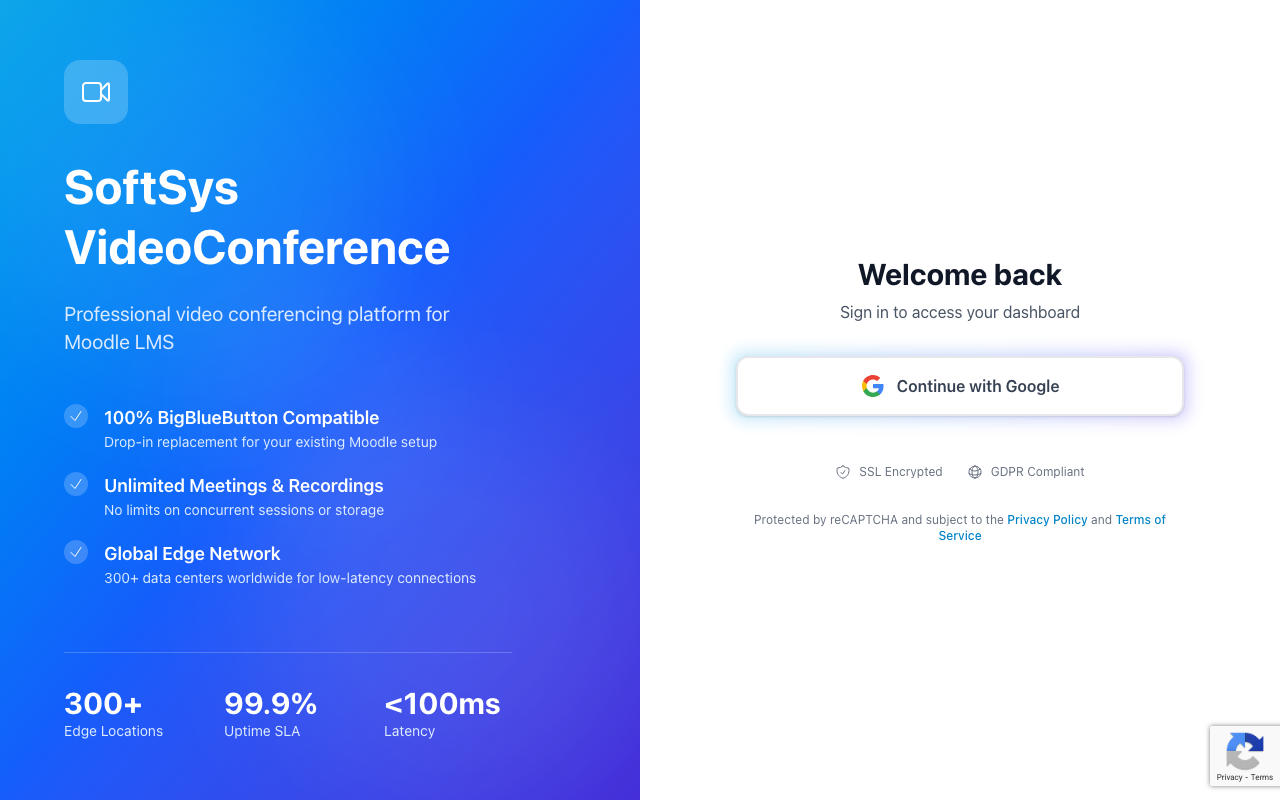
On first login, the onboarding wizard guides you through:
- Setting up your organization profile
- Adding initial credits to your account
-
Get your API credentials
Once logged in, go to Settings → Integration.
You will find two values you need:
- Server URL — unique endpoint for your organization (e.g.
https://api-xxxxxxxx.softsysvideo.xyz/bigbluebutton/api/) - Shared Secret — a unique key for your organization
Copy both values. You’ll paste them into Moodle next.
- Server URL — unique endpoint for your organization (e.g.
-
Configure the Moodle plugin
In your Moodle admin panel:
- Go to Site administration → Plugins → Activity modules → BigBlueButton
- Enter your Server URL in the BigBlueButton server URL field
- Enter your Shared Secret in the Shared secret field
- Click Save changes
See Plugin Configuration for detailed instructions with screenshots.
-
Test a meeting
In any Moodle course:
- Add a BigBlueButton activity
- Click Join session
- You should be redirected to the SoftSysVideo meeting room
What’s next?
Section titled “What’s next?”- Moodle Plugin Configuration — detailed plugin settings
- Dashboard Overview — learn what you can manage from the dashboard
- Billing Overview — understand how usage is charged